Additionally, Windows has many tools hidden behind simple text commands. Command Prompt is still one of them.
Moreover, you can use it to check files, manage folders, test networks, and troubleshoot problems. Moreover, the right command prompt prompts can make these tasks much easier.
I tested several CMD commands recently. Honestly, some basic commands were more useful than expected.
You don’t need to be a programmer. In short, you only need to know what each command does.
This guide covers practical commands for Windows users in 2026. You’ll also find examples, tips, and simple explanations.
“Good commands save time when you know what they actually do.”
What Are Command Prompt Prompts?
Command Prompt is a Windows command-line tool. It lets you control many system tasks with typed commands.
The term command prompt prompts can refer to useful command ideas for CMD. These ideas help users solve common Windows problems.
For example, you can use CMD to display folders. You can also test your internet connection.
Microsoft documents commands such as mstsc, which can launch Remote Desktop connections. Its /prompt option can request credentials during connection. (Microsoft Learn)
However, don’t run commands blindly. Nevertheless, some commands can change system settings or delete files.
15 Useful Command Prompt Prompts for Windows
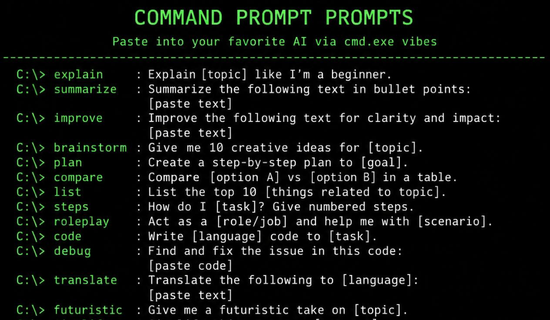
1. Additionally, check your IP address.
Use:
ipconfigThis command displays basic network information. Moreover, you can view your IPv4 address and other adapter details.
Try this first when checking a network connection.
For more details, use:
ipconfig /allIt provides additional adapter information.
2. Test Your Internet Connection
Use:
ping google.comThe command sends network requests to the selected address.
You’ll see whether responses return successfully. This can help identify basic connection problems.
Still, a successful ping doesn’t guarantee that every website will work.
3. Clear DNS Cache
Use:
ipconfig /flushdnsWindows stores DNS information temporarily. Old DNS records can sometimes cause connection issues.
Therefore, flushing the cache can help during certain troubleshooting situations.
4. Check Windows System Files
Use:
sfc /scannowSystem File Checker scans protected Windows files. It can repair corrupted system files when possible.
Run Command Prompt as administrator for this task.
“Start with simple checks before trying complicated fixes.”
5. Display Running Tasks
Use:
tasklistThis command shows running processes on your computer.
It’s useful when you want to identify active programs.
You can also search for a specific process:
tasklist | findstr chromeThat makes the output easier to read.
6. Stop a Stuck Program
Use:
taskkill /IM notepad.exe /FReplace notepad.exe with the process you need to close.
Be careful with this command. Don’t terminate essential Windows processes.
7. See Files in a Folder
Use:
dirThis displays files and folders in your current location.
You can also show hidden items with:
dir /aIt’s a simple command, but beginners often find it useful.
8. Move Between Folders
Use:
cd DocumentsThe cd command changes your current folder.
To move back one level, use:
cd ..So, you can move around your computer without opening File Explorer.
9. Create a New Folder
Use:
mkdir ProjectsThis creates a folder named Projects.
You can replace the folder name with anything you need.
For example:
mkdir MyFilesNow the folder exists in your current location.
10. Copy Files
Use:
copy file.txt D:\Backup\This copies the selected file to another location.
Before copying, check the destination carefully. You don’t want to overwrite an important file accidentally.
11. Rename a File
Use:
ren oldname.txt newname.txtThis changes the filename without opening File Explorer.
It’s helpful when managing many files quickly.
12. Find Your Windows Version
Use:
verWindows returns the current version information.
You can also use:
systeminfoThat command provides much more system information.
Two Command Groups Worth Saving
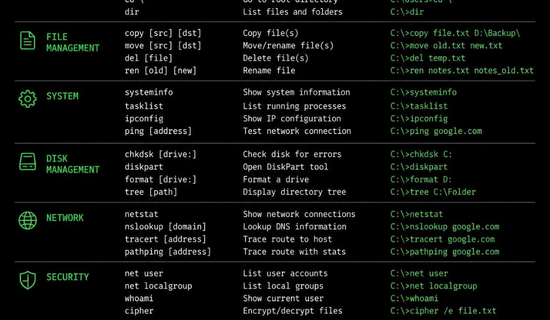
Here are two quick groups of command prompt prompts that beginners can save.
Everyday Commands
dirfor viewing filescdfor changing foldersmkdirfor creating folderscopyfor copying filesrenfor renaming filestasklistfor checking processes
These commands are mostly useful for basic file and system management.
Network Commands
ipconfigfor network informationpingfor connection testingipconfig /flushdnsfor clearing DNS cachetracertfor checking network pathsnslookupfor checking DNS informationnetstatfor viewing network connections
Use these commands when troubleshooting network problems.
Sound useful? Most beginners can learn these without memorizing complicated syntax.
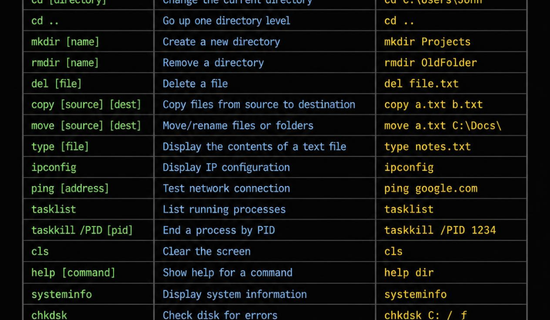
Quick Command Reference
| Command | Main Use | Beginner Level |
|---|---|---|
dir | View files | Easy |
cd | Change folders | Easy |
mkdir | Create folders | Easy |
copy | Copy files | Easy |
ren | Rename files | Easy |
ipconfig | View network details | Easy |
ping | Test connectivity | Easy |
tasklist | View processes | Medium |
The table shows why basic commands are worth learning first.
You can build confidence before using advanced system commands.
Useful Commands for Troubleshooting
| Command | What It Checks | Common Use |
|---|---|---|
sfc /scannow | System files | Repair checks |
ipconfig /flushdns | DNS cache | Website issues |
ping | Network response | Connection testing |
systeminfo | System details | PC information |
tasklist | Running processes | App troubleshooting |
tracert | Network route | Connection diagnosis |
Microsoft’s command documentation also explains command parameters and expected syntax. For example, mstsc supports options for remote desktop connections. (Microsoft Learn)
13. Check Network Connections
Use:
netstatThis command displays network connections and related information.
You can use:
netstat -anoThe extra options provide more information, including process IDs.
However, don’t assume every connection is dangerous. Many are created by normal Windows services and applications.
14. Trace a Network Route
Use:
tracert google.comThis command shows the route between your computer and the destination.
It can help when a website loads slowly or fails to connect.
The results may show several network hops. Some hops may not respond, and that isn’t always a problem.
15. Look Up DNS Information
Use:
nslookup google.comThis checks DNS information for the selected domain.
It’s useful when investigating domain or connection problems.
Actually, scratch that if you’re completely new to CMD. Start with ping and ipconfig first.
A Simple Real-Life Example
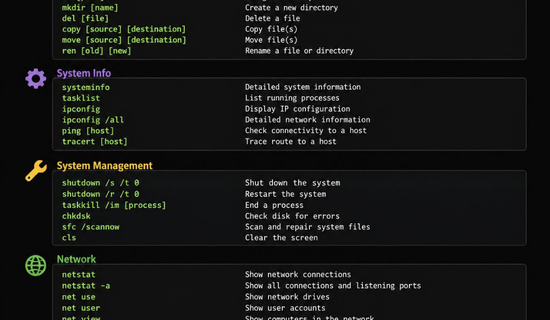
A friend who runs a small bakery had trouble opening one business website.
We checked the connection with ping. Then, we used ipconfig /flushdns.
The website opened normally afterward.
That doesn’t mean DNS flushing fixes every website problem. It simply shows how basic checks can sometimes help.
“Troubleshooting works better when you test one thing at a time.”
Are Command Prompt Prompts Safe?
Most basic commands are safe when used correctly. However, commands can still cause problems if you misunderstand them.
Never paste random commands from an unknown source.
Especially avoid commands that delete files or modify important system settings.
Before running a command, understand three things:
- What does the command change?
- Where does it operate?
- Can the action be reversed?
Also, avoid commands involving sensitive credentials or unknown scripts.
Some tools can run commands with administrator permissions. That makes careful checking even more important.
How to Learn CMD Faster
You don’t need to memorize hundreds of commands.
Instead, learn commands by purpose.
Start with file management. Then learn networking commands.
After that, explore system information and troubleshooting tools.
Try each command in a safe folder. This lets you understand the result without risking important files.
You can also use:
helpFor more information about a specific command, try:
help dirThis built-in help can explain many commands directly inside Command Prompt.
Why These Commands Still Matter
Windows has modern graphical settings. Yet Command Prompt remains useful.
It’s fast for repeated tasks. It’s also helpful when graphical tools aren’t working properly.
Developers, technicians, students, and everyday users can all benefit from basic CMD skills.
Recent Windows workflows also include command-line tools such as winget. However, CMD commands remain valuable for core Windows tasks.
The best approach is simple. Learn a few commands and understand them well.
“You don’t need to become a command-line expert to benefit from CMD.”

Conclusion
Command Prompt can look confusing at first. In reality, many commands are simple once you understand their purpose.
The best command prompt prompts focus on real tasks. Start with folders, files, networking, and system checks.
Then, slowly explore more advanced commands.
Don’t rush. One useful command is better than twenty commands you don’t understand.
With regular practice, CMD can become a handy Windows troubleshooting tool.
FAQs
1. What is Command Prompt used for?
Command Prompt lets you control Windows through typed commands. It can manage files, check networks, and troubleshoot system problems.
2. Are command prompt prompts difficult for beginners?
No. Basic commands are easy to learn. Start with dir, cd, ipconfig, and ping.
3. Can CMD fix Windows problems?
Some commands can help diagnose or repair problems. For example, sfc /scannow checks protected system files.
4. Should I run CMD as administrator?
Only when a command requires elevated permissions. Avoid administrator access when it’s unnecessary.
5. Can Command Prompt delete files?
Yes. Some commands can delete files or folders. Always check a command before running it.
6. How can I learn CMD commands quickly?
Practice commands by category. Start with file management, then networking, system information, and troubleshooting. you may know about SEO Content……….