Creating professional graphics no longer requires years of design experience. Now, you can turn a simple idea into a social media post, logo, product image, or presentation with just a few instructions. As a result, ai graphic design tools are becoming increasingly useful for students, freelancers, business owners, and content creators.
The biggest change in 2026 is how these tools fit into the creative process. Instead of generating a picture and leaving you to fix everything, some platforms can help build editable layouts, refine designs through conversation, and keep visual styles consistent. Canva AI 2.0, for example, introduced conversational design and layered, editable outputs in its April 2026 launch.
Canva
+1
Honestly, this is exciting for beginners. You can explore ideas without knowing every design rule from day one. Still, good results depend on your instructions, creative choices, and willingness to edit the final output.
So, which tools are worth trying? Let’s look at the leading options, their features, and how to choose the right one for your work.
What Are AI Graphic Design Tools?
AI graphic design tools are applications that use artificial intelligence to help people create or edit visual content. They can generate images, suggest layouts, remove backgrounds, improve photographs, and turn written instructions into design ideas.
For example, imagine you need a YouTube thumbnail for a technology tutorial. You can describe the topic, preferred colors, headline, and overall style. The tool may produce a starting design that you can adjust before publishing.
These tools support different types of creative work, including:
- Social media posts, stories, and advertisements.
- YouTube thumbnails, banners, and channel graphics.
- Logos, brand assets, and product images.
- Presentations, posters, and marketing materials.
However, not every platform offers the same features. Some focus on quick templates, while others provide detailed image editing or professional design controls.
The goal isn’t to let software make every decision. It’s to reduce repetitive work and give you more time to improve the final result.
Best AI Graphic Design Tools to Try in 2026
Several platforms stand out because they support different creative needs. Your best choice depends on your experience, budget, and the type of content you want to produce.
1. Canva AI
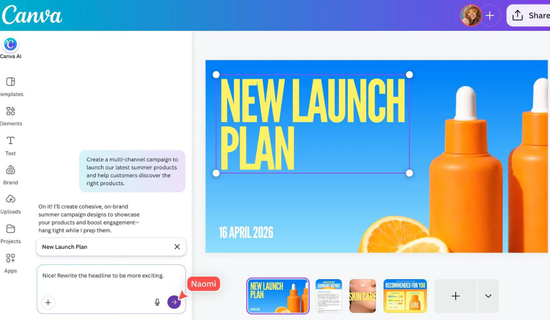
Canva is a practical starting point for beginners, bloggers, students, and social media managers. Its editor combines templates, text, images, and design elements in one workspace.
Canva AI 2.0, introduced in April 2026, added a conversational workflow that helps users create and refine designs through instructions. Its features include layered editable outputs, brand intelligence, and tools for working with content and research.
Canva
+1
You can use Canva to create:
- Instagram posts and promotional graphics.
- YouTube thumbnails and channel banners.
- Business presentations and posters.
- Brand templates for consistent content.
The main advantage is convenience. You don’t have to build every design from a blank page.
That said, beginners should check the details before publishing. AI-generated text, spacing, and image placement may still need adjustments.
Best for: Beginners, bloggers, students, and social media creators.
2. Adobe Firefly
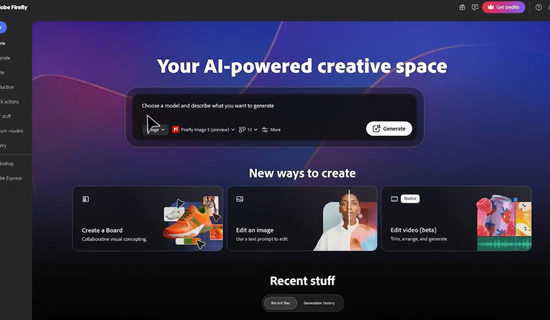
Adobe Firefly is designed for people who want more control over image creation and editing. You can describe an image, generate visual concepts, adjust existing assets, and explore different creative styles.
Adobe expanded Firefly’s capabilities in 2026 with additional AI models, editing features, and a more connected creative workspace. Its June updates also introduced new agent-assisted workflows for creative tasks.
Adobe Blog
+1
Firefly can help with:
- Creating images from written prompts.
- Exploring concepts for advertising campaigns.
- Editing images and replacing backgrounds.
- Developing visual assets for larger projects.
One useful approach is to generate several concepts before choosing a direction. You can then refine the strongest option instead of accepting the first result.
However, professional users should review licensing terms and the intended use of generated assets before commercial publication.
Best for: Marketers, photographers, and designers who need flexible image creation.
3. Figma
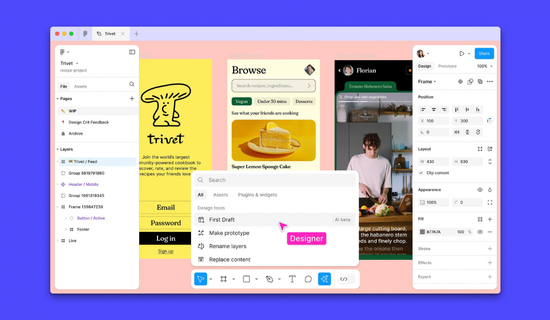
Figma is particularly useful for interface design, websites, mobile applications, and collaborative projects. It helps teams work on layouts, components, prototypes, and shared design files.
Its 2026 product announcements included Figma Motion, which brings timeline-based motion work into the design canvas, along with updates to its design agent and creative tools.
Figma Blog
+1
You can use Figma for:
- Website and mobile app layouts.
- Interactive prototypes.
- Design systems and reusable components.
- Team feedback and collaborative design work.
Although it can support many visual projects, it’s not simply a logo generator or a template-based poster maker. Its strongest use cases involve structured digital design.
Best for: UI designers, web designers, and product teams.
4. Adobe Photoshop
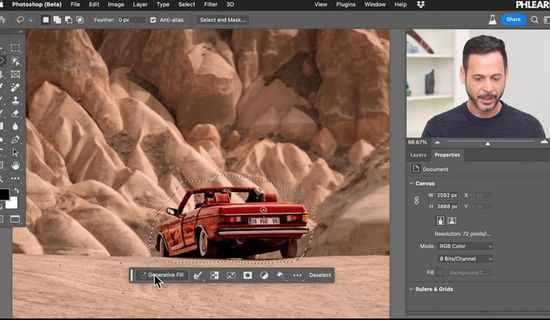
Photoshop remains useful when a project requires detailed image editing. It offers layers, selections, masking, color correction, and AI-assisted editing features.
For instance, a thumbnail designer might need to remove a distracting object, improve a subject’s appearance, or combine several images into one composition.
Photoshop provides more detailed control than many quick-design platforms. However, beginners may need time to learn its interface and editing methods.
Best for: Photo editing, advanced thumbnails, and detailed image compositions.
5. Microsoft Designer
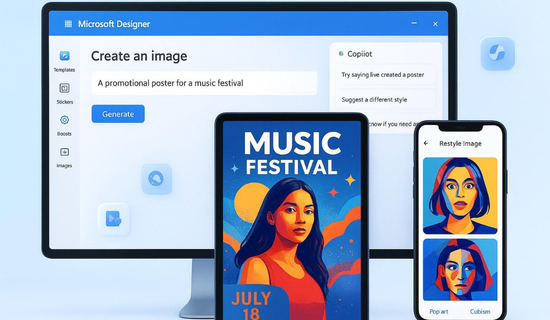
Microsoft Designer helps users create visual content with AI assistance. It can be useful for social media graphics, invitations, promotional images, and other everyday design tasks.
Its straightforward workflow makes it worth considering if you want to experiment with visual ideas without learning a complex editor.
Still, available features and usage limits can change depending on the product version and your Microsoft account.
Best for: Casual creators, small businesses, and quick promotional graphics.
Quick Comparison of the Leading Tools
The table below compares their main strengths. Exact features and plan limits may vary by subscription and region.
| Tool | Main strength | Suitable for |
|---|---|---|
| Canva AI | Templates and editable designs | Beginners and content creators |
| Adobe Firefly | AI image creation and editing | Marketers and creative professionals |
| Figma | Interfaces and collaboration | Web and app designers |
| Adobe Photoshop | Detailed image editing | Experienced designers |
| Microsoft Designer | Quick AI-assisted graphics | Everyday design tasks |
What Features Should You Look For?
Choosing software based on popularity alone can lead to frustration. Instead, focus on the features you will actually use.
Image generation and editing
A useful tool should help you create original visual concepts and refine them. Background removal, object replacement, image expansion, and color adjustments can also save time.
Check whether the editor allows you to change individual elements. An editable design is often more useful than a flat image when you need to update text or replace a photograph.
Templates and layout control
Templates help beginners understand spacing, alignment, and visual hierarchy. They also make it easier to produce several graphics in a consistent style.
However, avoid relying on the same template for every project. Change the composition, image treatment, typography, and headline placement to suit each design.
Brand consistency
Businesses need their graphics to look related. Look for features that support saved colors, fonts, logos, and reusable templates.
This matters when you publish several posts each week. Consistent visuals help audiences recognize your brand.
Export options and pricing
Before choosing a subscription, check file formats, image quality, commercial-use terms, and export limits. Some features may require a paid plan even when the basic editor is free.
Here are four things to check before signing up:
- Whether the free plan covers your regular tasks.
- Whether exports include watermarks.
- Whether your preferred file formats are supported.
- Whether commercial usage is allowed under the applicable terms.
How to Create Better Designs With AI
Good design starts with a clear goal. A detailed prompt can help the software understand what you want, but your final decisions still matter.
Follow this simple process.
Step 1: Define the purpose. Decide whether you need a thumbnail, advertisement, logo, or social media post.
Step 2: Describe the visual style. Include the audience, color palette, subject, mood, and layout.
Step 3: Generate a few options. Compare different compositions instead of choosing the first result automatically.
Step 4: Edit the details. Check the text, spacing, contrast, alignment, and image quality.
Step 5: Export and review. View the graphic at its intended size before publishing it.
For example, a prompt for a technology thumbnail could read:
“Create a clean YouTube thumbnail about fixing a slow computer. Use a dark background, a bright laptop image, bold white text, and one blue accent. Keep the layout simple, readable, and suitable for mobile screens.”
You may need to add the headline manually if the generated text contains mistakes.
Are Free AI Design Tools Enough?
For many beginners, free plans are enough to learn basic design skills and produce simple graphics. You can practise layouts, explore color combinations, and develop a small portfolio without immediately paying for software.
However, free access doesn’t always include every AI feature. Monthly generation limits, premium templates, advanced editing options, and high-quality exports may require a subscription.
Consider the following comparison before choosing a plan.
| Requirement | Free plan | Paid plan |
|---|---|---|
| Learning basic design | Often sufficient | Also suitable |
| Simple social graphics | Usually sufficient | More advanced options |
| Premium templates | May be restricted | Often includes more |
| High-volume production | Usage limits may apply | Higher limits may be available |
| Advanced editing | Depends on the tool | May include extra features |
Prices and plan benefits change, so check each provider’s current pricing page before purchasing. Don’t pay for features you won’t use.
How Small Businesses Can Benefit
Small businesses often need regular graphics but cannot always hire a designer for every task. AI-assisted workflows can help them prepare promotional materials, product visuals, and social content more efficiently.
Consider a small bakery preparing a weekend cake promotion. The owner could create a product graphic, an Instagram story, and a matching offer poster from one visual concept. After that, the owner could update the text and image for future promotions instead of rebuilding everything.
The important part is the review process. Product photographs should be accurate, prices should be correct, and the design should reflect the actual offer.
AI can speed up production, but it cannot replace knowledge of the business or its customers.
Common Mistakes to Avoid
Even experienced creators can produce weak graphics when they rely too heavily on automated results.
Watch out for these problems:
- Overloaded layouts: Too many images, fonts, and effects make a design difficult to read.
- Unclear prompts: Vague instructions often lead to generic results.
- Incorrect text: Check spelling, names, prices, and calls to action.
- Inconsistent branding: Use related colors, fonts, and image styles.
- Ignoring usage rights: Review the terms for generated assets, stock images, and commercial projects.
And here’s the thing: a complicated design isn’t always a better design. A clear headline, one strong visual, and enough empty space can be more effective than a crowded graphic.
The Future of AI-Assisted Graphic Design
Design software is moving toward workflows that connect idea generation, editing, collaboration, and publishing. Canva AI 2.0 emphasizes conversational creation and editable elements, while Adobe is expanding AI assistance across creative applications. Figma is also developing tools that connect interface design with motion and other creative tasks.
Canva
+2
These changes could reduce repetitive tasks and help creators test more ideas. They also make design knowledge more valuable, not less.
Why? Because someone still needs to judge whether a visual communicates the right message, fits the audience, and supports the brand.
In my view, the strongest approach is to combine automation with practical design skills. Learn typography, contrast, spacing, color, and composition while using AI to explore possibilities.
Conclusion
The right ai graphic design tools can help you create better visuals, save time, and experiment with new ideas. Canva AI is a useful starting point for templates and social content, Adobe Firefly supports image generation, Figma suits digital interfaces, and Photoshop offers detailed editing control.
Start with one tool that matches your needs. Practise with real projects, review every output, and build a consistent style as your skills improve.
You don’t need to master every platform at once. Focus on creating useful, clear, and original designs that serve a real purpose.
Frequently Asked Questions
1. What are the best AI graphic design tools in 2026?
Canva AI, Adobe Firefly, Figma, Adobe Photoshop, and Microsoft Designer are useful options. The best choice depends on whether you need templates, image generation, detailed editing, or interface design.
2. Can I use AI to create graphics for free?
Yes. Some platforms offer free access to basic design and AI features. However, advanced tools, premium assets, and higher usage limits may require payment.
3. Which AI design tool is best for beginners?
Canva AI is a practical starting point because it combines templates, an accessible editor, and AI-assisted features. Beginners should still learn basic layout and typography skills.
4. Can AI create a professional logo?
AI can generate logo concepts and help explore colors, symbols, and styles. You should review the design carefully and check originality, trademark concerns, and commercial-use terms before using it as a business identity.
5. Are AI-generated graphics safe for commercial use?
That depends on the platform, the asset, the applicable license, and your intended use. Read the provider’s terms and check for trademark, copyright, and other legal concerns before publishing commercial work.
6. Will AI replace graphic designers?
AI can automate parts of the design process, but human judgment remains valuable. Designers still make decisions about brand identity, audience needs, visual communication, originality, and final quality. Combining design skills with AI knowledge can help creators adapt to changing workflows.