Creating videos used to require expensive software, cameras, and editing skills. As a result, AI can turn simple prompts into short videos.
Moreover, a free AI video generator tool helps creators test ideas without paying upfront. Moreover, you can create social clips, product videos, animations, and B-roll.
However, every free tool has different rules. Some offer daily credits, while others provide limited monthly access.
Recent 2026 updates show another trend. Furthermore, AI video tools now focus more on motion, audio, references, and better prompt control.
“Free” does not always mean unlimited.
That small detail can save you plenty of frustration.
What Is an AI Video Generator?
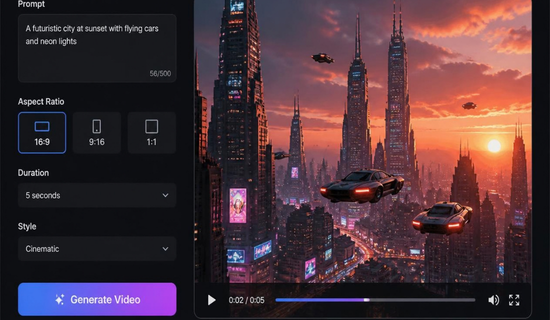
In general, an AI video generator creates video from instructions. Typically, you provide text, an image, or both.
The system then creates moving scenes based on your input.
For example, you could write:
“A small coffee shop during heavy rain, cinematic lighting.”
The tool may create a short video matching that description.
Some platforms also animate existing images. Others create talking avatars or complete social videos.
In 2026, text-to-video and image-to-video tools have become much easier to use.
What Can You Create?
You can use these tools for:
- YouTube Shorts
- Instagram Reels
- Product advertisements
- Educational videos
- Storytelling clips
- Website visuals
So, you don’t need advanced editing skills for every project.
Best Free AI Video Generators in 2026
The best choice depends on your project. There isn’t one perfect tool for everyone.
I compared current free access, generation types, credits, and common restrictions. Free plans can change quickly, so always check the current account limits.
| Tool | Best For | Free Access |
|---|---|---|
| Pika | Social videos and effects | Monthly free credits |
| Dreamina | Text and reference videos | Daily credits |
| Runway | Professional testing | 125 one-time credits |
| Luma | Cinematic experiments | Limited free credits |
| Kling | Realistic motion | Free access varies |
| PixVerse | Quick AI clips | Free credits |
| HeyGen | Talking avatars | Limited free videos |
1. Pika
Pika is a strong option for social media creators.
Its free Basic plan currently provides 80 monthly video credits. Free Pika 2.5 output is limited to 480p.
The platform also focuses heavily on creative effects.
You can animate images and experiment with short video concepts.
“Pika works best when you want quick creative experiments.”
It’s especially useful for Reels, Shorts, memes, and visual effects.
Still, free credits can disappear quickly when effects require more credits.
2. Dreamina
Dreamina is another interesting option for creators.
It supports prompt-based and reference-led video creation. Free users can receive daily credits, although availability can vary.
You can use images as references for more controlled results.
This helps when you want a specific character, object, or visual style.
Dreamina also provides tools for refining generated content.
Honestly, this workflow feels more useful than simply generating random clips.
3. Runway
Runway is well known among professional creators.
Its current free plan provides 125 one-time credits. Those credits don’t renew.
The free plan currently focuses on image-to-video generation.
Free exports also carry a Runway watermark.
So, Runway is better for testing its creative workflow.
“A free trial can be useful without being a complete free production plan.”
If you need repeated free generations, another platform may fit better.
4. Luma Dream Machine
Luma is useful for cinematic experiments.
Its free web plan provides limited monthly access. Free generations can include restrictions around resolution and watermarks.
The platform is worth testing for visual storytelling.
You can create scenes from prompts and explore different creative ideas.
However, free access isn’t designed for unlimited production.
5. Kling AI
Kling has become a popular choice for realistic AI video.
It supports text-to-video and image-to-video workflows.
Current free access can depend on the account and available credits. Recent guides also show that free-plan information can change frequently.
That’s why you should check your dashboard before planning a large project.
Kling can be useful for cinematic scenes, product visuals, and realistic motion.
6. PixVerse
PixVerse focuses on quick video generation.
Recent information lists free credits for users, with limits on resolution and watermarks depending on access.
It supports both text and image-based creation.
That makes it useful for creators who already have images ready.
The interface is also friendly for short-form content.
7. HeyGen
HeyGen takes a different approach.
It focuses mainly on talking avatars and presenter videos.
Its free access currently allows limited videos, including short clips.
This makes it useful for tutorials, explainers, and business content.
It isn’t the best choice for cinematic scene generation.
Instead, think of it as an AI presenter.Read more about ChatGPT Tutorial…………..
Quick Comparison
Here’s a simpler comparison before you choose.
| Tool | Text-to-Video | Image-to-Video | Main Strength |
|---|---|---|---|
| Pika | Yes | Yes | Creative effects |
| Dreamina | Yes | Yes | Reference control |
| Runway | Limited free access | Yes | Professional workflow |
| Luma | Yes | Yes | Cinematic scenes |
| Kling | Yes | Yes | Realistic motion |
| PixVerse | Yes | Yes | Social content |
| HeyGen | Script-based | Limited | AI avatars |
The biggest mistake is choosing a tool only because it says “free.”
Instead, check four things first:
- Free credit amount
- Video resolution
- Watermark rules
- Commercial usage terms
How to Use an AI Video Generator
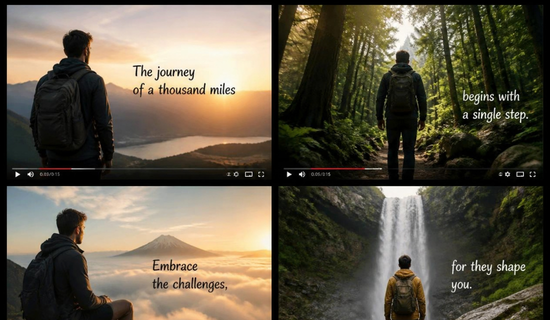
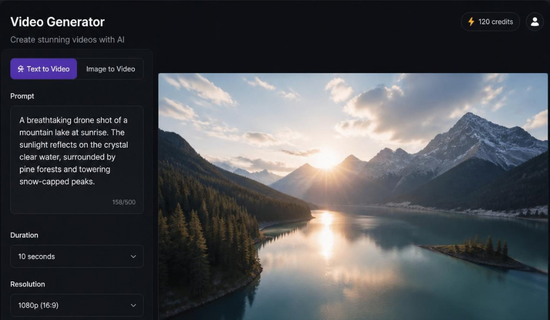
Using an ai video generator free platform is usually simple.
First, choose your tool.
Then, decide whether you want text-to-video or image-to-video.
Write a clear prompt with the subject, action, setting, and camera style.
For example:
“A golden retriever running through a sunny park, slow camera movement.”
Keep the first prompt simple.
Then generate your clip and review the result.
If something looks wrong, improve one part of the prompt.
Don’t change everything at once.
That makes it easier to understand what improved your result.
How to Write Better AI Video Prompts
Good prompts can make a noticeable difference.
Start with the subject.
Then describe the action.
After that, mention the environment and camera movement.
Finally, add the visual style.
A useful structure looks like this:
Subject + Action + Location + Camera + Lighting + Style
For example:
“A young chef preparing pasta in a modern kitchen, close-up camera, warm lighting, realistic style.”
Avoid adding ten different actions.
AI models can struggle when prompts become too crowded.
Also, specify movement when it matters.
Words like “slow pan,” “close-up,” and “tracking shot” can guide the scene.
Free Does Not Mean Unlimited
Here’s where many beginners get confused.
A tool can be free while still having strict limits.
One platform may offer daily credits. Another may provide monthly credits.
Some platforms offer one-time credits instead.
Watermarks are another issue.
For example, Runway’s free plan currently includes a watermark. Pika offers recurring free credits but limits free output resolution.
Always check the export before building your entire project around one tool.
This matters even more for monetized content.
Commercial rights can also differ between platforms.
Read the current terms before using generated footage for paid campaigns.
My Simple Workflow for Beginners
If you’re completely new, don’t start with complicated projects.
I recommend creating a five-second scene first.
Try one subject and one action.
Then test the same idea across two different tools.
Compare motion, detail, consistency, and export quality.
A friend who runs a small bakery tried this approach for product clips. She created simple cake shots first, then moved to short promotional videos.
The smaller tests helped her avoid wasting free credits.
Sound familiar?
Try This Workflow
- Pick one simple idea.
- Write a short prompt.
- Generate a small clip.
- Check motion and details.
- Improve the prompt.
- Export the strongest result.
This process is simple, but it saves credits.
Is Free AI Video Good Enough?
For many creators, yes.
Free tools are now strong enough for social experiments, B-roll, concepts, and simple promotional content.
However, free plans still have limits.
You may face lower resolution, watermarks, queues, or fewer credits.
The right question isn’t whether free AI video is perfect.
Ask whether it is good enough for your current project.
If you’re learning, free access is usually more than enough.
If you’re producing daily client work, paid access may save time.
In my view, that’s the real difference.
Best Tool for Different Needs
Pika for creative social effects.
Dreamina for reference-based experiments.
Runway for professional workflow testing.
Luma for cinematic experiments.
Kling when realistic motion matters.
PixVerse for quick social clips.
HeyGen for talking-avatar content.
These recommendations reflect current free-plan information, which can change with new updates. You may know about more tool for video editing ………………
Final Verdict
An ai video generator free tool can be enough to start creating videos today.
You don’t need expensive equipment for your first experiments.
Start with short clips.
Test different prompts.
Compare several platforms before choosing one.
Also, don’t judge a tool from one viral demo.
Your own workflow matters more.
Free credits are excellent for learning and testing ideas. However, serious production may require a paid plan.
The best choice is the tool that gives you useful results within your limits.
FAQs
1. What is the best free AI video generator?
Pika, Dreamina, Kling, PixVerse, and Luma are strong options. Your best choice depends on your video type.
2. Can I generate AI videos for free?
Yes. Several platforms offer free credits or limited free generations. Their limits can change over time.
3. Which free AI video tool is best for beginners?
Pika and Dreamina are good starting points. Their interfaces support simple creative experiments.
4. Can AI generate videos from images?
Yes. Many platforms support image-to-video generation. Runway, Pika, Dreamina, Kling, and PixVerse support image-based workflows.
5. Are free AI videos watermark-free?
Not always. Watermark rules vary by platform and plan. Always check the current export terms.
6. Can I use free AI videos commercially?
It depends on the platform’s current license. Check commercial-use terms before publishing paid or client work.